To Install Driver Turbo Simply Follow the Instructions Below:
Driver Turbo automatically updates your system with the correct drivers that are 100% specific to your computer to ensure maximum performance.
Step 1: Download Driver Turbo
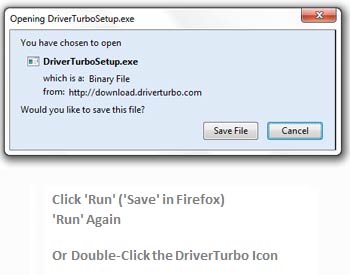
Step 2: Click “Save File or Run”
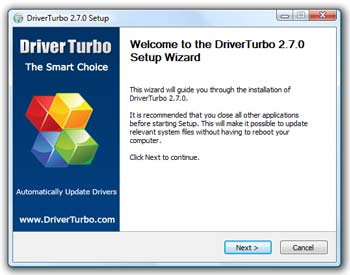
Step 4: Click “Next”
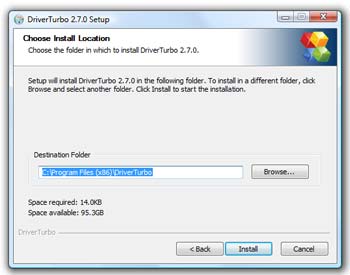
Step 6: Click “Install”
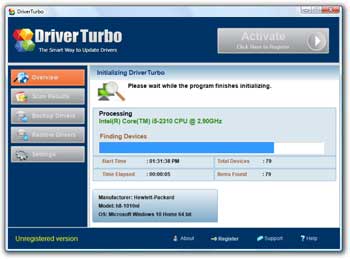
Step 8: Wait for Driver Turbo to finish Initializing
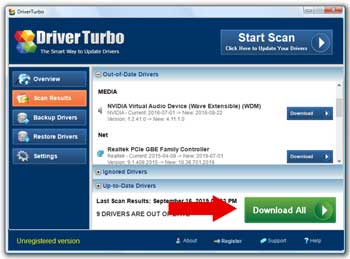
Step 10: Click “Scan Results” and download drivers
Step 4: Click “Next”
Step 6: Click “Install”
Step 8: Wait for Driver Turbo to finish Initializing
Step 10: Click “Scan Results” and download drivers
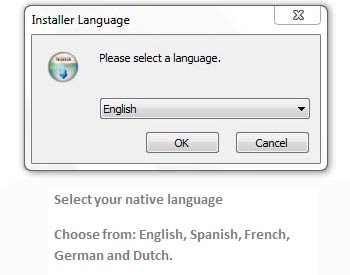
Step 3: Select Language and Click “Okay”
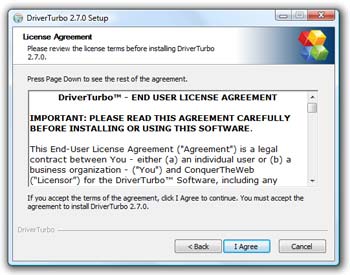
Step 5: Accept Terms and Click “I Agree”
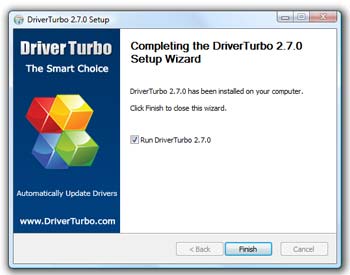
Step 7: Click “Finish”
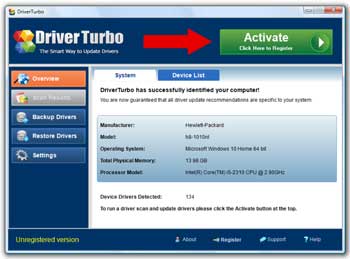
Step 9: Click “Activate” to register Driver Turbo
Step 5: Accept Terms and Click “I Agree”
Step 7: Click “Finish”
Step 9: Click “Activate” to register Driver Turbo
Nothing Happens When I Click the Download Button
Do you click on the download button but nothing happens? Or did you start the process earlier but want to continue?
In order to continue, try these options:
- Click on the DriverTurbo.com icon on your desktop.
- Click on > Windows > All Programs > DriverTurbo.com if you can’t find the icon on your desktop.
Either option will open Driver Turbo. You can now start scanning your computer for missing device drivers!